How-to
How to schedule LinkedIn posts (free, and with a tool)
Step by step: schedule a LinkedIn post for free with LinkedIn's built-in scheduler, see and edit scheduled posts, schedule for a company page, and when a scheduling tool is worth it.

Short answer
To schedule a LinkedIn post for free: start a post, write it, click the clock icon next to Post, pick a date and time, click Next, then Schedule. To see or edit scheduled posts, open the composer and click the clock icon, then View all scheduled posts. It works for company pages too, from the page's admin view.
LinkedIn added native scheduling in 2022, so you don't need any tool to queue a post. Here's how.
Schedule a post on your profile
- On your LinkedIn home feed, click Start a post.
- Write the post and add any image, video or document.
- Click the clock icon next to the Post button.
- Choose a date and time (in your local time zone), then click Next.
- Check the preview and click Schedule.
See, reschedule or delete scheduled posts
Open the composer, click the clock icon, then View all scheduled posts. Each one has options to reschedule or delete.
Schedule for a company page
Switch to your page's admin view, click Create, then Start a post, and use the same clock icon. You need to be a page admin or content admin.
When to use a scheduling tool instead
LinkedIn's scheduler is a timer. Use a tool when you want:
- A calendar of every post queued for the month.
- Drafting and design: the tool writes the post or makes the carousel.
- Analytics to learn which posts and times work.
- Team approvals before anything is published.
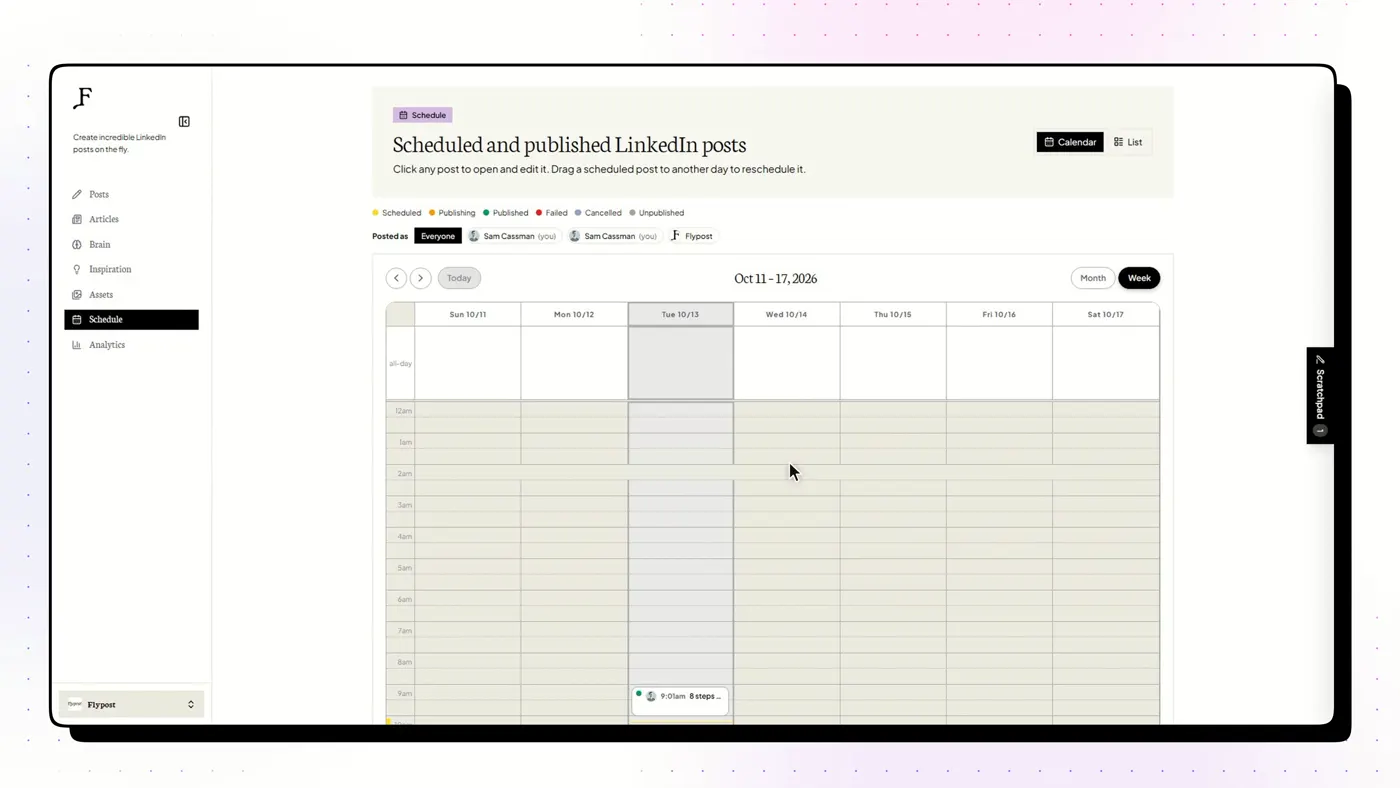
Compare options in the best LinkedIn post schedulers, and check how each one connects to your account in are LinkedIn AI tools safe?
Frequently asked questions
How far ahead can you schedule a LinkedIn post?
LinkedIn's built-in scheduler lets you pick a date up to about three months ahead.
Can you schedule LinkedIn posts on mobile?
Yes. The clock icon appears in the LinkedIn app's composer too.
Can you schedule a carousel (document post) on LinkedIn?
Yes. Upload the PDF as a document, add a title, then use the clock icon to schedule it like any other post.
Can you edit a scheduled LinkedIn post?
You can reschedule or delete it from View all scheduled posts. To change the text, the simplest route is to delete it and schedule a corrected version.